Most dental practices deliver genuinely excellent care. Patients leave happy, staff are friendly, and the clinical work is solid. But open Google and search for a dentist in your city — and practices with 200 reviews at 4.8 stars dominate the results, while offices with better care sit invisible at 4.2 stars with 22 reviews from three years ago.
The difference almost never comes down to the quality of care. It comes down to whether the practice has a consistent system for collecting reviews.
Automated review requests for dental offices close that gap — and this guide walks through exactly how to build one that works.
Why Google Reviews Are the Front Line for New Patient Acquisition
Before getting into the mechanics, it helps to understand what's actually at stake.
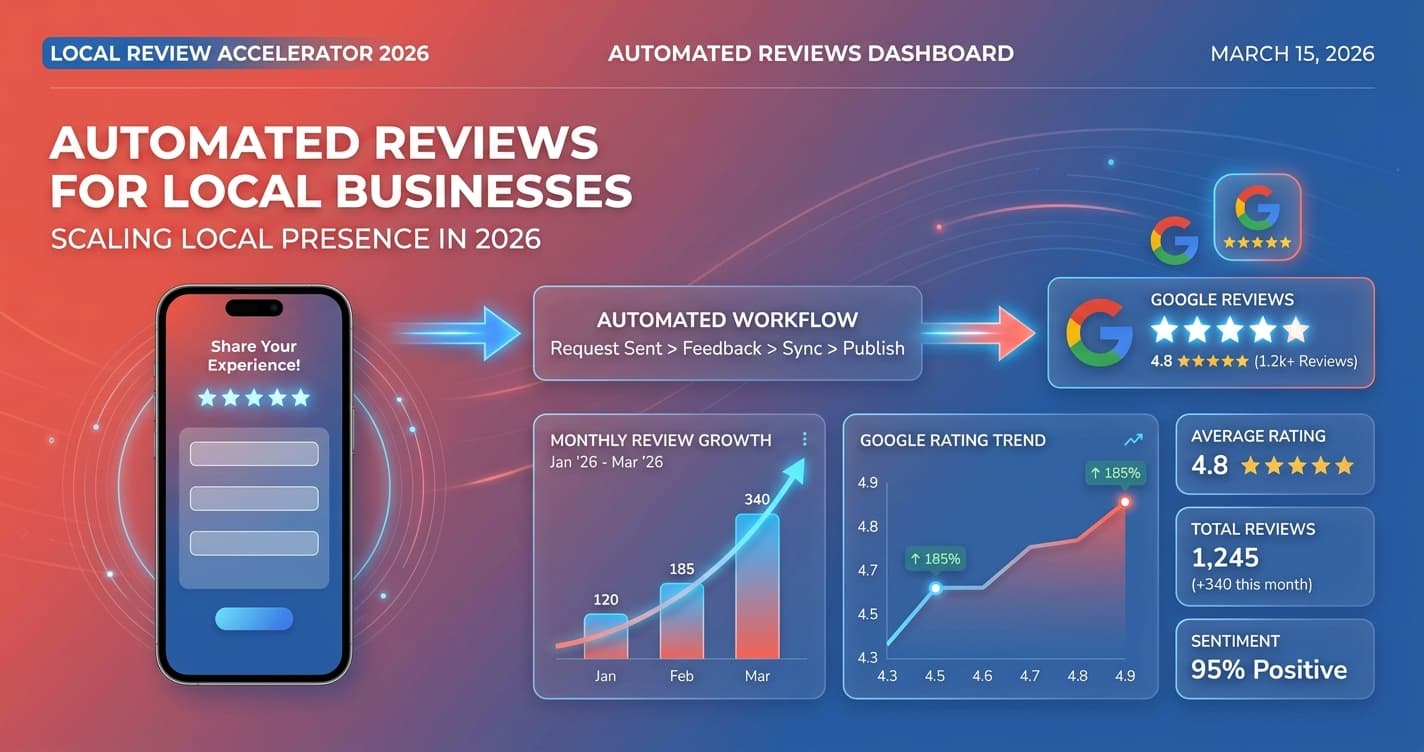
An automated review requests dental office system sends a personalized text to each patient within 30–60 minutes of their appointment, while satisfaction is at its peak. Dental practices that implement this consistently see a 2x–3x increase in monthly review volume within 90 days — improving Local Pack rankings and new patient conversion from Google Business Profile.
New patients trust Google reviews more than any other signal. Research by BrightLocal consistently shows that 87% of consumers read online reviews for local businesses before making a decision, and healthcare is among the highest-research categories. When someone moves to a new neighborhood and types "dentist near me," they are choosing from a list where review count, recency, and star rating are the three visible signals.
Google's local ranking algorithm also factors review quantity and freshness directly into the Local Pack. A practice with 15 reviews — no matter how good — is algorithmically disadvantaged against a competitor with 180. That's not a reflection of your care quality. It's a data problem, and automated review requests solve it.
How Automated Review Requests Work for Dental Offices
The automated review requests dental office managers set up follows a straightforward process once the pieces are connected.
- Patient checks out at the front desk after their appointment
- Your practice management software marks the appointment as complete
- Your review automation platform detects the completion and triggers a text message 30–60 minutes later
- The text includes the patient's first name and a short, direct link to your Google Business Profile review page
- The patient taps once, lands directly on the review form, and leaves a star rating with or without a comment
No staff intervention required. No awkward "would you mind leaving us a review?" at the desk while three people are waiting. The system handles the ask, timed perfectly, every single time.
Most review automation platforms — including Podium, BirdEye, and NiceJob — integrate directly with Dentrix, Eaglesoft, Kareo, and Open Dental. Setup typically takes a single afternoon.
Free Resource
Free Call Script Pack
Calculate your missed-call revenue loss and get 12 proven call scripts for AI receptionists.
Download FreeStep-by-Step Setup for Your Dental Review Workflow
The automated review requests dental office workflow follows the same four steps regardless of which platform you use.
Step 1: Connect your practice management software
Your automation platform needs a trigger — the signal that an appointment has been completed. Most platforms connect via direct integration or API to your practice management system. Map "appointment status: completed" as the trigger event.
Step 2: Write your review request message
Short, warm, and direct works best. Here's a template that consistently performs well:
"Hi [Name], it was great seeing you today at [Practice Name]! If you have 60 seconds, a Google review would mean a lot to us: [direct link]. Thanks — Dr. [Name]'s team"
The patient's first name and the direct link are the two non-negotiables. Anything that requires navigating to Google manually loses the majority of patients before they start.
Step 3: Set your send timing
Schedule the first message for 30–60 minutes post-checkout. This window captures patients while they're still in the experience. Response rates drop sharply after 24 hours — by around 50% in most practices.
Step 4: Build a follow-up sequence
A 48-hour follow-up improves total response rates by 10–15%. Importantly, the second message should not include a review link — it should read as a genuine check-in:
"Hi [Name] — just checking in after your visit. Hope you're feeling great! Reach out anytime if you have questions."
This keeps the relationship warm without being pushy. Many patients who respond to the follow-up will go back and leave a review on their own.
HIPAA Compliance: What Dental Offices Need to Know
HIPAA is a reasonable concern for any automated review requests dental office system, but the compliance requirements are simpler than most practice managers expect.
HIPAA protects Protected Health Information (PHI): diagnoses, treatment details, prescriptions, clinical notes, and anything tied to a patient's health record. A review request text that says "it was great seeing you today" and links to Google does not expose PHI. It references the fact that an appointment occurred — not what happened during it.
To stay compliant, two things matter:
- Obtain text consent at intake. Your new patient intake form almost certainly already includes a communication consent checkbox. Confirm it covers SMS.
- Do not include clinical details. The review request message should contain zero information about what procedure was performed, what was found, or what was prescribed.
Platforms built for healthcare, like Podium and BirdEye, handle this architecture by design. Their messaging flows are tested for healthcare compliance out of the box.
Common Mistakes That Kill Response Rates
Automated review requests dental office campaigns can underperform when the setup has one of these issues:
Sending too late. Waiting until the end of the business day — or worse, running a weekly batch request — crushes response rates. The 30–60 minute post-appointment window is not a suggestion; it's where the vast majority of responses come from.
Generic, impersonal messages. "Please consider leaving a review" with no patient name and no direct link performs at a fraction of personalized messages. Name plus direct link is the baseline.
Asking after difficult appointments. Not every visit is a good candidate for a review request. Extractions, emergency visits, and cases where complications arose should be filtered out of automated review requests. Most platforms allow appointment-type exclusions.
No mobile-optimized link. If the link requires the patient to log into Google on desktop, most won't complete it. Use a shortened, direct link to your Google Business Profile review tab that opens cleanly on mobile.
What Results Dental Offices Actually See
Practices that implement automated review requests consistently report:
- 3x more monthly reviews in the first 90 days compared to their manual approach (or no approach)
- 0.3–0.5 star improvement in average rating over six months, as the volume of satisfied patient reviews dilutes isolated negatives
- Higher Local Pack visibility for searches like "dentist near me [city]" and "[neighborhood] dental office"
- More new patient calls from Google Business Profile — reviewers tend to read profiles more thoroughly, and a higher review count signals trustworthiness
The practices that see the biggest jumps are typically high-volume offices that had been relying on patients to leave reviews voluntarily — and had accumulated 20–40 reviews over five or more years of operation. Closing that gap takes weeks, not years, with an automated system in place.
Keep Reading
- Complete Guide to Review Automation for Local Businesses — the full strategy behind automated review collection, timing, and response management
- How to Get More Google Reviews Automatically — the full review automation framework for any local business
- Review Automation for Cleaning Companies: Beat Competitors — the same system applied to home services
- Respond to Negative Reviews: A 5-Step Small Business Guide — handle the reviews you didn't want